Frequently asked questions
We explained NightyApp step by step: 10 topics, 44 questions. If you can't find what you're looking for, write to: info@nightyapp.app
Getting started
What is NightyApp and how do you start?
What is NightyApp, and is it free?
NightyApp is an app that shows restaurants, cafés, bars, clubs, concerts, theatres and events in one place, and lets you meet the people who are at the venue you go to right now.
Downloading, discovering, checking in, matching and messaging are free. For more matches, more messages and selective visibility there is Premium, and credits for gifts.
Can I use it without signing up?
Yes. On the welcome screen, tap "Browse without signing up". Your choice is remembered on your phone, so when you reopen the app you go straight back to browsing.
- Open: Discover (events, venues, organizers), the map, city selection, filters, venue and event pages, reading reviews.
- Locked: the Check-in, Match and Messages tabs, following venues, starring events. On a locked tab, "Sign up / Log in" takes you back to the sign-up screen in one tap.
- No account is created as a guest: we don't have your name, email or photo.
How do I sign up?
- 1On the welcome screen, continue with email, Google or Apple.
- 2Enter your name, date of birth, gender and who you want to match with (gender and age range).
- 3Add your profile photos and, if you like, write a short "about me".
- 4Accept the Terms of Use and the Privacy Policy.
💡 NightyApp is for ages 18 and over only.
Which cities and languages is it available in?
Thousands of cities and over 160,000 venues are listed across more than 40 countries in Europe; new events are added every day.
The app is available in Turkish, English, Albanian, Spanish, German, French, Russian, Serbian and Romanian. You change it under Profile > Settings > Language; notifications also arrive in the language you choose.
Discover and map
Finding events, venues and cities
How do I find events and venues?
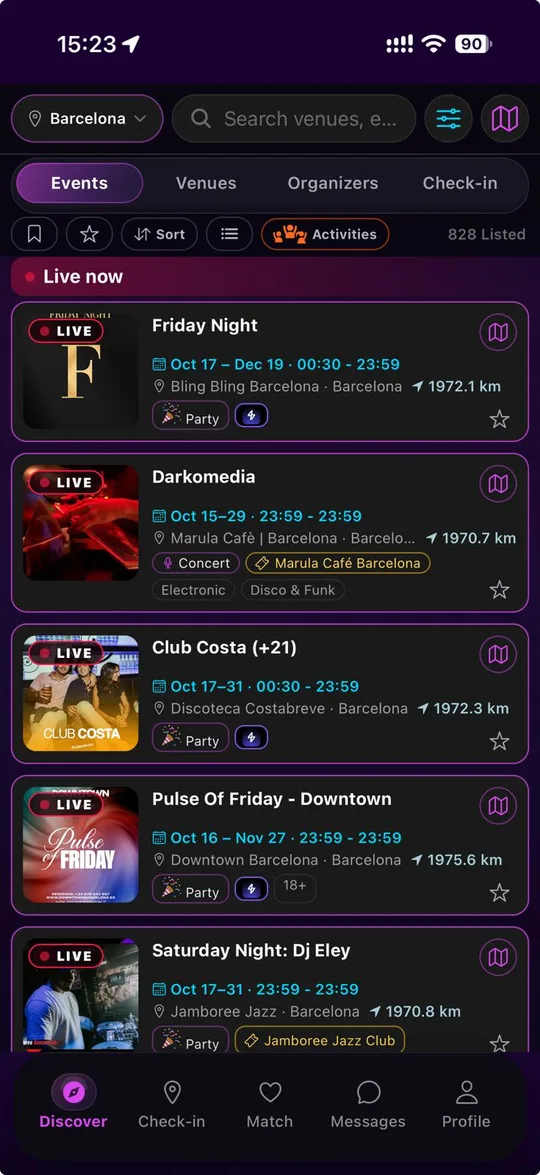
At the top of the Discover tab there are the sub-tabs "Events", "Venues", "Organizers" and "Check-in".
- Events: sorted under day headings. "Featured" comes first, then "Live now", "Today", "Tomorrow" and the following days. Events without a confirmed date are under "Date unconfirmed".
- Venues: restaurants, cafés, bars, clubs, concert halls, theatres and more; with rating, distance and live crowd level.
- Organizers: companies that run events and ticketing platforms.
- Check-in: venues within 200 meters; tap one and check in from the venue page.
How do I choose a city?
- 1Tap the location chip to the left of the search box (by default it shows the district you are in).
- 2Choose "Near Me" and set a distance between 1 and 100 km, or type a city name into the "Find City" box.
- 3Next to each city you see how many venues and events it has. When the box is empty, your province and the nearest cities are suggested.
💡 Towns and districts are grouped under the city they belong to; if the place you are looking for isn't listed, try the nearest big city.
How do filters and sorting work?
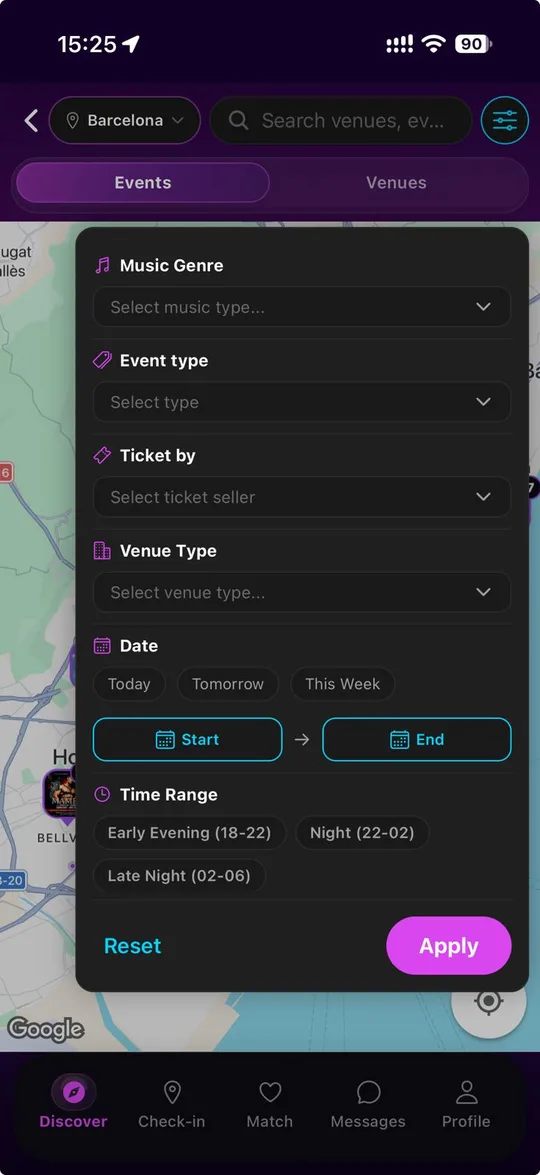
In the window opened by the "Filters" button, make as many selections as you like and tap "Apply"; "Reset" clears them all.
- Filters: music genre, event type, ticket seller, venue type, date (Today, Tomorrow, This Weekend, This Week or a custom range), time range (18–22, 22–02, 02–06), crowd (Active, Medium, Quiet), minimum rating.
- Sort: Default, By Date, By distance, By rating, By popularity, By liveness. Featured events stay at the top in every sorting.
- Shortcuts: the bookmark icon shows the venues you follow, the star icon shows the events you starred; the button next to them switches between cards and list view.
How does the map work?
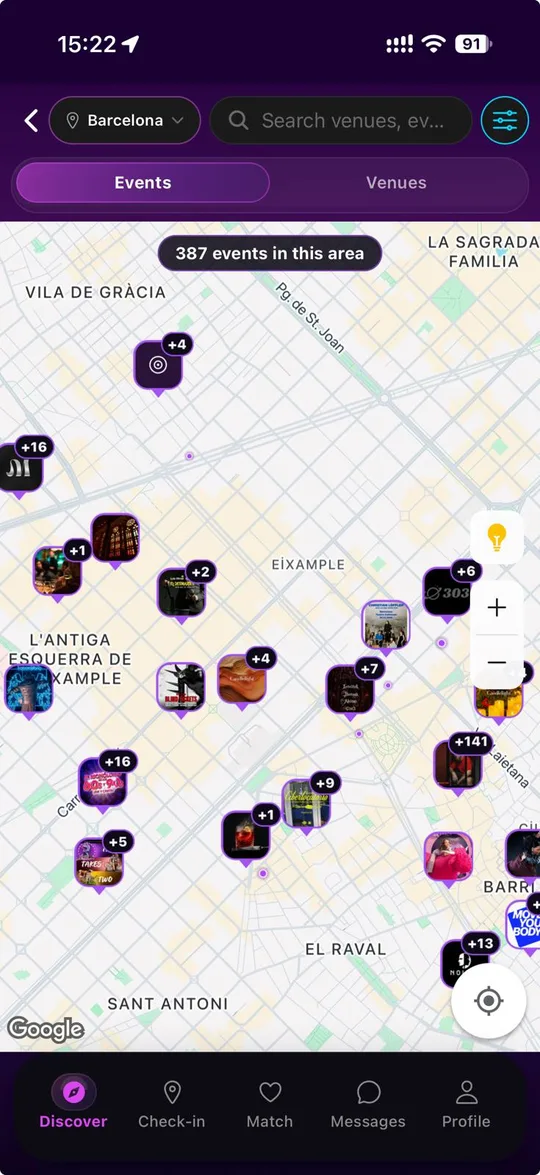
- Tap the map icon next to the search box; the map shows whichever sub-tab you are on.
- The markers are venue or event photos; for an event without a photo, the icon of the venue type appears.
- When you zoom in to street level, names and details appear under the markers; as you zoom out, only the photos remain.
- A "+N" on a marker means there are N more events at the same venue; tap it and browse them with the arrows on the card that opens.
What are following a venue and starring an event for?
- Following: the bookmark icon at the top right of the venue page. Announcements from venues you follow are collected under "Following" in Notifications; if you like, you can get notifications only from them.
- Star: the star on the event card. Your starred events are listed under the star shortcut in Discover. Nobody sees who starred an event, only the total count.
Do I buy tickets through NightyApp?
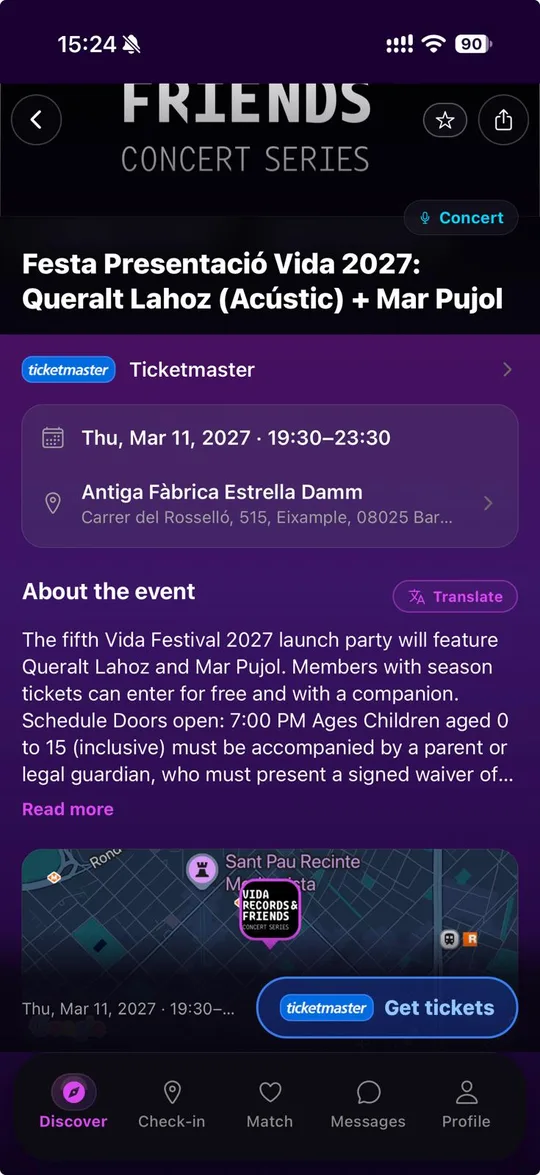
No. Tickets are bought from the official sales sites (Ticketmaster, Eventim, Biletix, iaBilet, etc.). The ticket button on the event page takes you straight to the right page; you pay on that site.
Check-in
Show you are at the venue, and choose who sees you
How do I check in?
- 1Open the page of the venue you are at (the Discover > Check-in sub-tab lists venues within 200 m).
- 2Tap the "Check-in" button at the top. You need to be within 100 meters of the venue and have location permission.
- 3In the "How do you want to check in?" window, pick an option.
- 4You see a "Welcome to …!" message, and the button turns green and says "You're Here".
💡 If the button is locked, the reason is written under it: "Get … closer", "In … minutes", "Location permission required" or "You're not in this area".
What do the check-in options mean?
- Just check in: you show up in the list of people at the venue but not on match cards.
- Check in and join matching: you appear on the match cards of people here, and they appear on yours.
- Anonymous check-in: you show up in the list as a nameless figure and you don't join matching; this check-in also stays hidden in your profile history.
- Visible only to people I pick (Premium): of the people at the venue, only the ones you pick can see you and match with you; the others never see you.
How does "Visible only to people I pick" work?
- 1Choose "Visible only to people I pick" among the check-in options; the "Who can see you?" panel opens. At first nobody is selected, which means nobody can see you.
- 2Everyone at the venue is in the list. Tap a person's row to select or deselect them. For quick selection use the "All", "Women", "Men" and "Clear" chips.
- 3If you long-press a photo it opens large; tap again to close. If you tap a photo briefly, the profile opens, and your selections are kept when you come back.
- 4Under "Visibility duration" choose No limit, 1 hour or 2 hours. When the time is up, you automatically become visible to everyone.
- 5Tap "Save". The phone vibrates and it says "Visible to N people ✓".
- People you pick don't know they were picked.
- People you didn't pick see you neither in the list nor on match cards; you don't even show up as an anonymous row. You, on the other hand, keep seeing everyone at the venue.
- To change your selection, tap the green "You're Here" button; the 💎 badge next to it shows how many people you picked. With the "Everyone / People I pick" switch at the top of the panel you can open up to everyone at any time.
- If someone new arrives while the venue page is open, a "N new people arrived" notice appears and you can update your list. You can also pull down to refresh.
- The selection resets when you check out or check in somewhere new.
💡 If you are not Premium, you see the panel as a blurred preview; the "Unlock with Premium" button takes you to the Premium screen.
Who is at the venue, and how do they see me?
On the venue page, tap the people count to the left of the "Check-in" button; the "People Here" list opens. Your own row is at the top with the "You" label. Tap a person to open their profile.
- People who check in anonymously and those who turn off "Show in venue list" appear as "Anonymous / Profile hidden", and their profiles can't be opened.
- You don't see people you blocked, and they don't see you.
- You can hide your age and flag under Profile > Privacy; they are hidden in the list and in matching too.
How do I check out? Is there automatic check-out?
- 1On the venue page, tap the green "You're Here" button.
- 2At the bottom of the panel that opens, tap the red "Check Out" button and confirm.
- If you move away from the venue: while the app is open your location is checked every few minutes; if two measurements in a row put you more than 200 meters away, you are checked out automatically and it says "You left …".
- When time runs out: a check-in stays open for 6 hours at most.
- If you check in at another venue, you are automatically checked out of the previous one.
- When you check out, your swipes (like / skip) at that venue are deleted; the matches and chats you made stay.
How do I hide or delete my check-in history?
The Check-in tab in the bottom menu is "My Check-in History": at the top your crowns, then the active "You're here now" card, and below it your past check-ins (10 at a time). Tap a card to open the venue page.
- 1Press and hold the card you want to hide or remove for half a second.
- 2In the "What do you want to do with this check-in?" window, choose:
- Hide (others can't see): it stays in your list with a crossed-out eye icon and is not shown to others under "Places They've Been" on your profile. If it is hidden, you can bring it back from the same place with "Show (remove privacy)".
- Remove completely: it disappears from your own list too.
💡 If you don't want to show the places you've been on your profile at all, turn off Profile > Privacy > "Share places I've been".
Matching
Meet the people at the same venue
How does matching work?
- 1Check in at a venue with "Check in and join matching".
- 2Open the Match tab; at the top it shows the venue name and "N people left".
- 3Swipe the card right or tap ♥ to like. Swipe left or tap ✕ to skip. Tap the right / left side of the photo to see the other photos; the info button opens the profile.
- 4When you both like each other, the "It's a Match!" screen appears: go to the chat with "Send Message" or tap "Keep Discovering".
- Only people who are at the same venue, have joined matching, have "Open to Matching?" turned on, and whose gender / age preferences match yours both ways show up on the cards.
- If you are not checked in, the tab says "Check-in to a venue to start matching".
- There is no undoing a swipe; but because swipes are deleted at check-out, the same people can show up again at your next check-in.
Is there a daily matching limit?
- Free: 3 swipes per venue (5 for a province / district check-in), and at most 5 different venues per day. The counters appear on screen as "x/3 this venue" and "x/5 venues today"; they reset every day.
- Premium: unlimited swipes.
Who liked me?
The "Liked You" card in the Match tab shows how many people liked you. With Premium you see all of them; otherwise the photos look blurred.
What is Random Match?
A game that some venues run: the venue randomly pairs one woman and one man who joined the game. When the venue opens the game and you check in there, a "Random Match" tab appears on the venue page.
- 1In the "Random Match" tab, tap "Join".
- 2When your pair is found, a card appears; within 10 seconds tap "Accept" or "Skip".
- 3If you both accept, you get "It's a match! Chat is open" and the chat starts. The same two people are never paired again.
Messages and notifications
Chat, gifts, reports and the notification inbox
How many messages can I send, and how long does a match last?
- Free: 3 messages per match; the match stays open for 3 hours.
- Premium: 10 messages per match; the match stays open for 12 hours.
- Buy message pack (1 credit): 10 messages for both of you and at least 12 hours, just for that match. The other person sees that you bought it.
- When your limit runs out, incoming messages look blurred; you need Premium or a message pack to read and reply.
How do I send a gift, and how many credits does it cost?
In a chat, tap the gift button next to the text box and pick a gift. Gifts don't count toward your message limit; they are paid with credits (1 ₭ = 1 credit).
- 0.5 ₭: Flower, Heart, Rose.
- 1 ₭: Kiss, Fire, Champagne.
- 2 ₭: Cocktail, Diamond.
- You can also send gifts in the venue chat: pick the gift and choose the person in the "To whom?" step (you can't send to anonymous people).
How do I report or block someone who bothers me?
- A single message: press and hold the message, choose "Report message" and mark the reason (Harassment / insults, Sexual content, Scam / spam, Threats / violence, Other).
- A person: from the ⋮ menu at the top right of the chat, choose "Report", "Block" or "Unmatch".
- The person you block can't see you in venue lists or matching, and you can't see them. Reports are reviewed by our team.
What is in the Notifications tab?
Use the "Messages / Notifications" switch at the top of the Messages tab to go to "Notifications". Venue announcements, matches, games and gifts are collected here; even if notifications are off on your phone they land here, and they are kept for 30 days.
- Following: those from venues you follow.
- Others: everything else.
- Tapping a notification opens the related venue, event or chat.
What are "NightyApp Team" messages, and how do I delete them?
The NightyApp Team row always stays at the top of the Messages list; announcements and information about your account arrive here, and you can't reply. To delete, press and hold the row and tap "Delete"; the row comes back when a new message arrives.
Games and venue chat
King / Queen, crowns and the venue board
How do I play the King / Queen game?
When a venue starts the game, people who check in there see a "King/Queen" tab on the venue page. Your profile gender must be woman or man; otherwise you can only watch.
- 1To become a candidate, tap "Yes, count me in 👑" (sign-up closes in the final minutes).
- 2Men vote for women and women vote for men: pick a score from 1 to 10 with the slider and tap "Vote & next". Votes are anonymous, and each candidate can be voted for once.
- 3When time is up, the venue announces the result: the "Tonight's King / Queen" window appears. To win you need votes from at least 20% of the participants.
Where are the crowns I won, and how do I hide them?
Your crowns show at the top of the Check-in tab and on your profile: King / Queen, venue, date, average score and number of votes. If you press and hold your own crown for half a second, "What should happen to this crown?" appears: Hide (only you see it), Show or Remove completely.
What is the venue chat (Dashboard)?
The shared chat board of the venue at that moment. Only people currently checked in at the venue can write; messages may also appear on screens at the venue.
- Free: 1 message per day; Premium: 20 messages per day.
- Press and hold a message: Reply, Edit and Delete (your own messages), Report (other people's).
- You can also send gifts from the board.
Venue and event pages
What is on a venue page?
What is on a venue page?
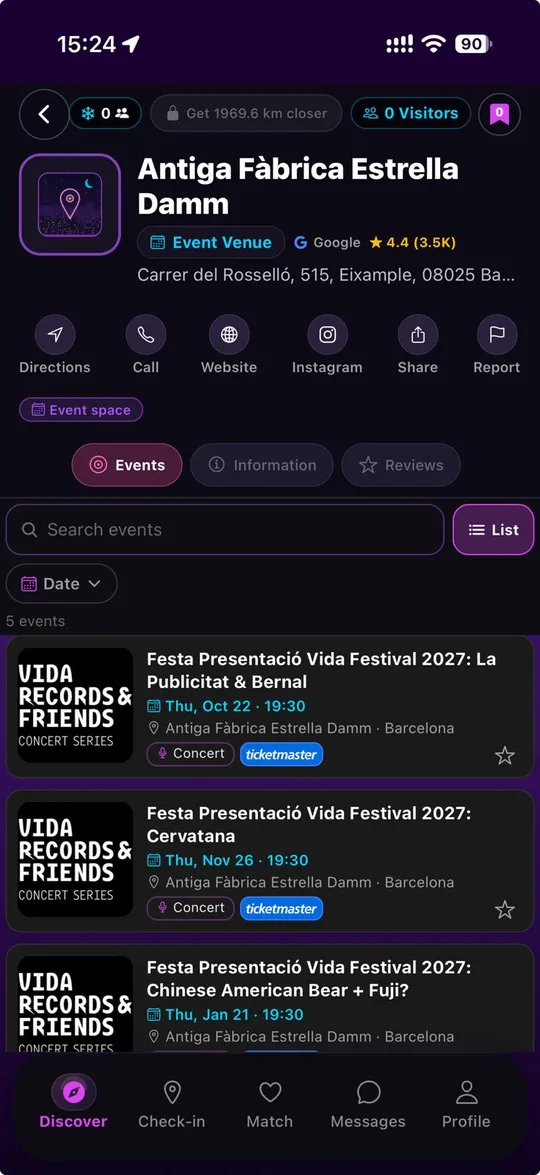
- Buttons: Directions (Google Maps), Call, Website, Instagram, Share, Report. A button with no info is hidden.
- Top section: visitor count, follow button and follower count, number of people at the venue, and the Check-in button.
- Tabs: Events, Information, Menu (for food and drink venues), Photos, Videos, Reviews. When a game or chat is on, King/Queen, Random Match and Dashboard are added too.
How do I filter the events of a venue or organizer?
- In the Events tab, search by name with "Search events" and choose List / Cards view.
- Filter by date (Today, Tomorrow, This Weekend, This Week), event type and organizer.
- For organizers with events in more than one city, a "City" filter appears; by default it opens with the city you chose in Discover, and you can find a city with the search box.
- "Sort": By Date (nearest date first), By distance, By popularity. Featured events stay at the top.
How do I leave a review and rating?
You write them from the Reviews tab, but only if you have checked in at that venue before. That way reviews come from people who really went. With Premium you can translate reviews in other languages with one tap.
What are venue stories?
Venues share photo and short video (up to 30 sec) stories; stories stay up for 12 hours. A venue with a story has a ring around its photo, and you watch it by tapping. You can report an inappropriate story with "Report".
The place I'm at isn't on the list. How do I add it?
- 1In Discover, switch to the "Check-in" tab at the top (places near you are listed here).
- 2Tap "Not on the list? Add a place" above the list.
- 3Type the place's name in the search box, or tap the place's name on the map.
- 4Tap "Add this venue" and confirm. The venue page opens and you can check in right away.
💡 Only social places can be added: restaurants, cafés, bars, clubs, karaoke, malls and similar. You need to be signed in. The place shows up in your list right away and for everyone within a few minutes.
Profile and privacy
Photos, verification, settings, deleting your account
How do I edit my profile photos?
- There are 3 photo slots; the photo in the first slot with the ★ "Main" label is your profile photo.
- To make another photo your profile photo, tap the ☆ icon on it.
- ✕ deletes a photo; tap an empty slot to add a new one. You can upload at most 10 photos per day.
- Photos are checked automatically for inappropriate content and age; if you have verified your identity, new photos are compared with your face.
How do I verify my identity (blue check)?
- 1Profile > Account > "Verify Identity".
- 2Strike the pose requested on screen (smile, open your mouth, look left or right) and tap "Take Selfie".
- 3Tap "Confirm". If it succeeds, it says "Identity verified ✓" and a blue check appears on your profile.
💡 The selfie itself is not stored; details are in the Privacy Policy.
What privacy settings are there?
Profile > Profile > "Privacy":
- Open to Matching?: if off, you don't appear on any match card.
- Hide my age: the people you match with and the venue list don't see your age.
- Hide my flag: your country is hidden the same way.
- Share places I've been: turns the "Places They've Been" section on your profile on / off.
- Show in venue list: if off, you appear as anonymous in the list of people at the venue.
- Use Profile > Profile > "How others see me" to check your profile through other people's eyes.
How do I set up notifications?
Profile > Settings > "Notifications": turn new match, new message, expiry warning, and venue chat mention / gift notifications on or off separately. For venue announcements you can choose "From all venues", "Only the ones I follow" or "No venue notifications". In the same place there are also Language, Location Permission and Appearance (System / Dark / Light) settings.
How do I delete my account?
- 1Profile > Account > "Delete Account".
- 2Read what will be deleted (profile, matches and messages, check-in history, venues you follow) and tap "Continue".
- 3Type "delete" in the box and tap "Permanently delete my account". This cannot be undone.
💡 If you have a subscription, deleting your account does not stop it; cancel it separately in the App Store / Google Play.
Venues and organizations
For venue owners and event organizers
How do I add and manage my venue?
Apply for a venue or organization at venue-admin.nightyapp.app. Once approved, from the panel you manage your events, menu, photos and stories; send notifications (announcements), start the King / Queen and Random Match games, and show the venue chat on a screen.
How do venue credits work?
Only venue admins can buy venue credit packs (25, 50, 100, 250) in the app; the credits are added to the buyer's own account. For paid venue actions, the venue's balance is used first, and if it isn't enough, the credits of the admin performing the action are used.